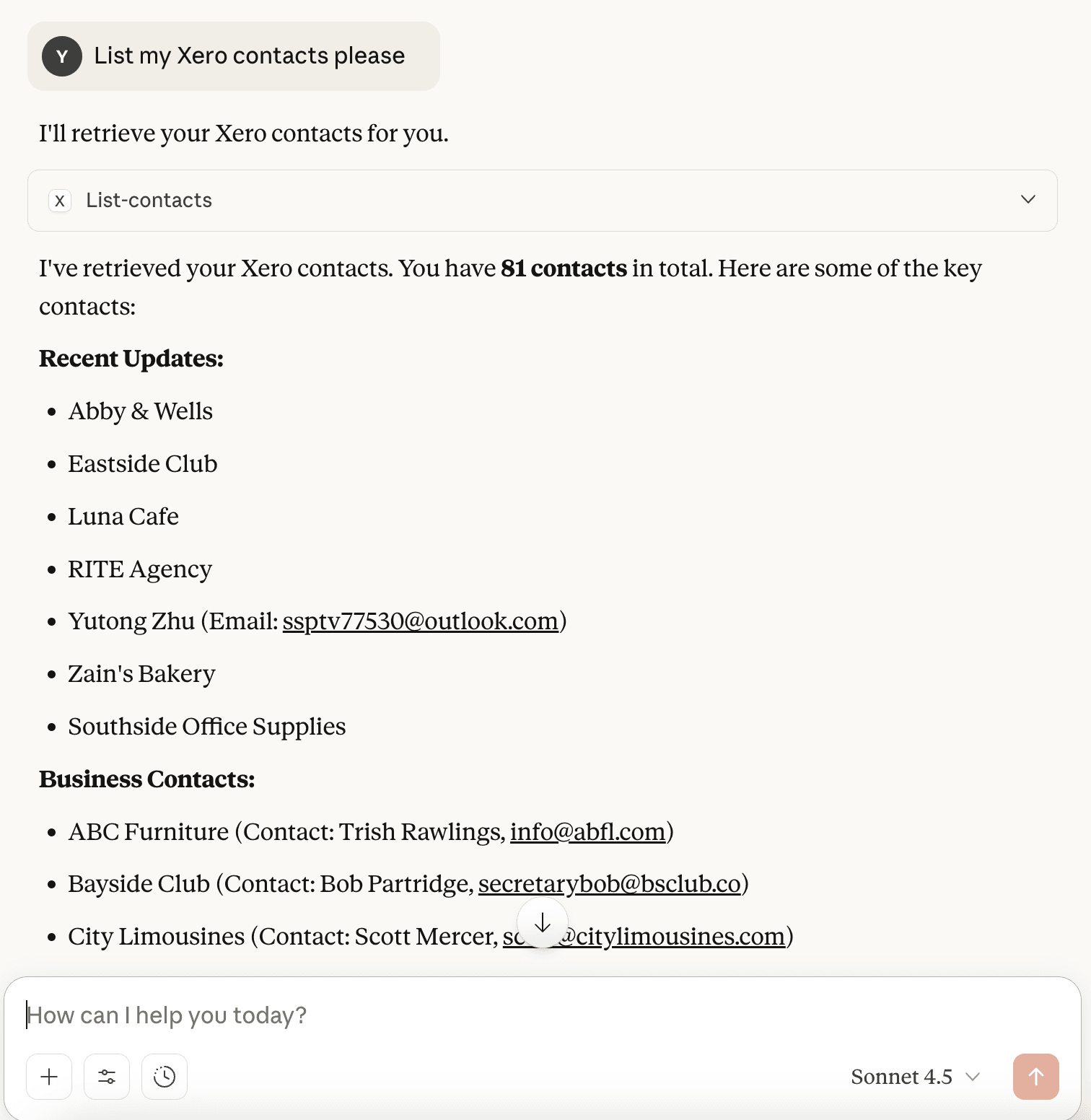
Step 1. Go to the developer in Claude
Open Claude, click your profile in the bottom left corner, then go to Settings.
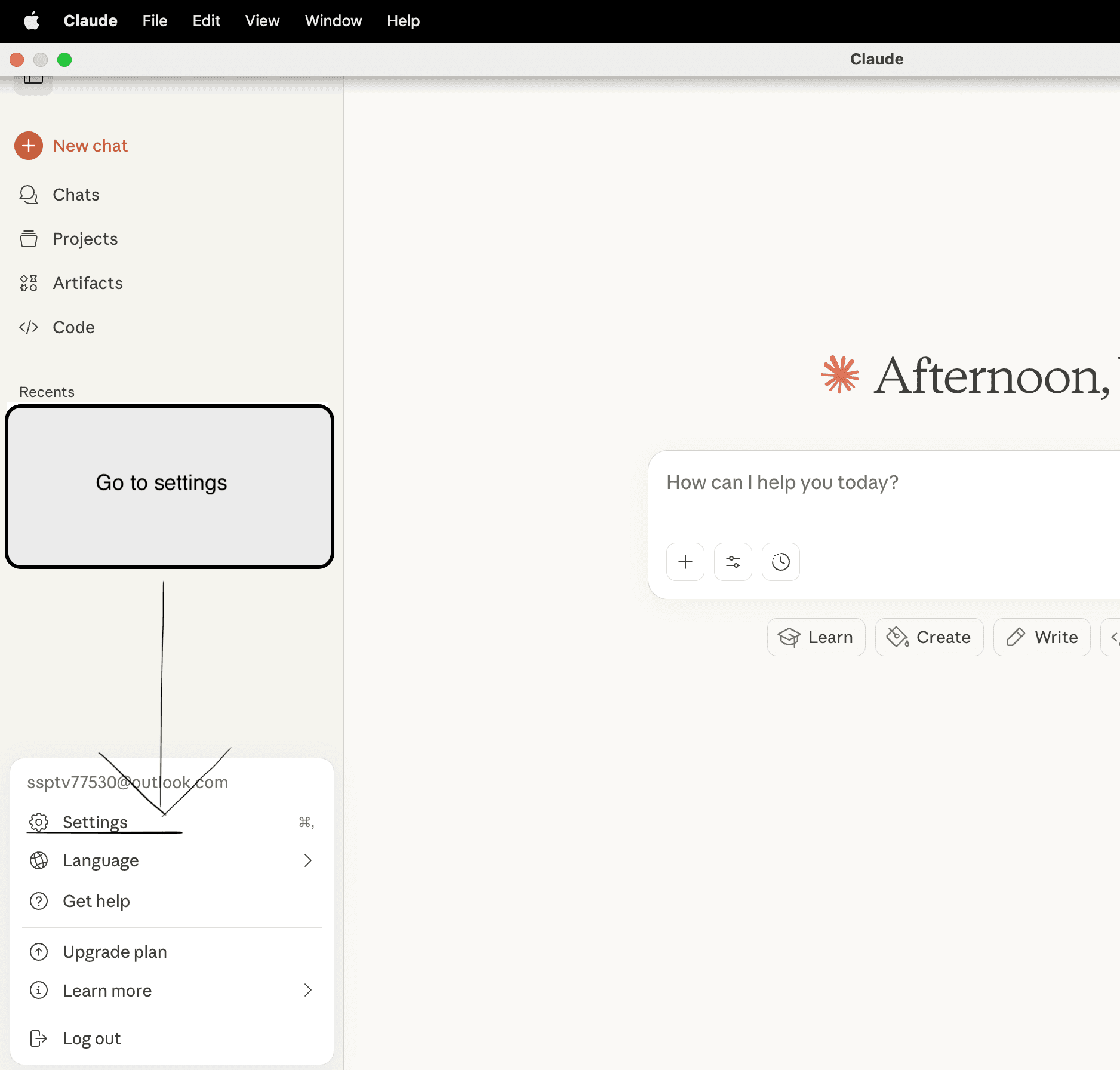
Step 2. Edit Config
In Developer tab, you will see the Edit Config button below Local MCP Servers.
Click Edit Config
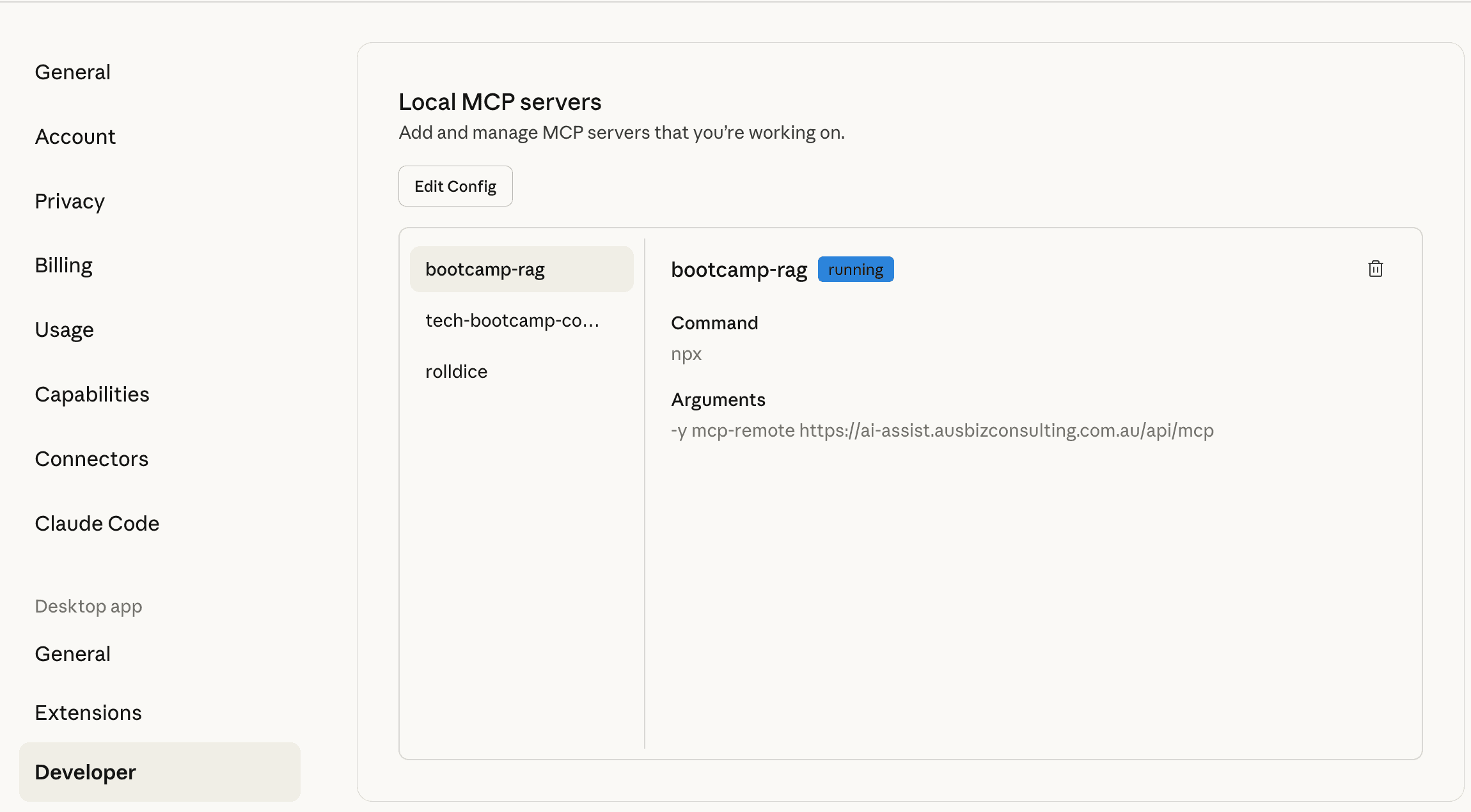
Step 3. Open the Config file
The claude_desktop_config.json file will be automatically selected.
Right-click the claude_desktop_config.json file and open it with any text editor. This will depend on on if you're using Windows or MacOS, and what text editor you use.
Step 4. Generate a secret at Developer.Xero
Go back to Developer.Xero's app's interface
Click Configuration, and you will see the "Generate a secret" button below Client ID.
Click Generate a secret.
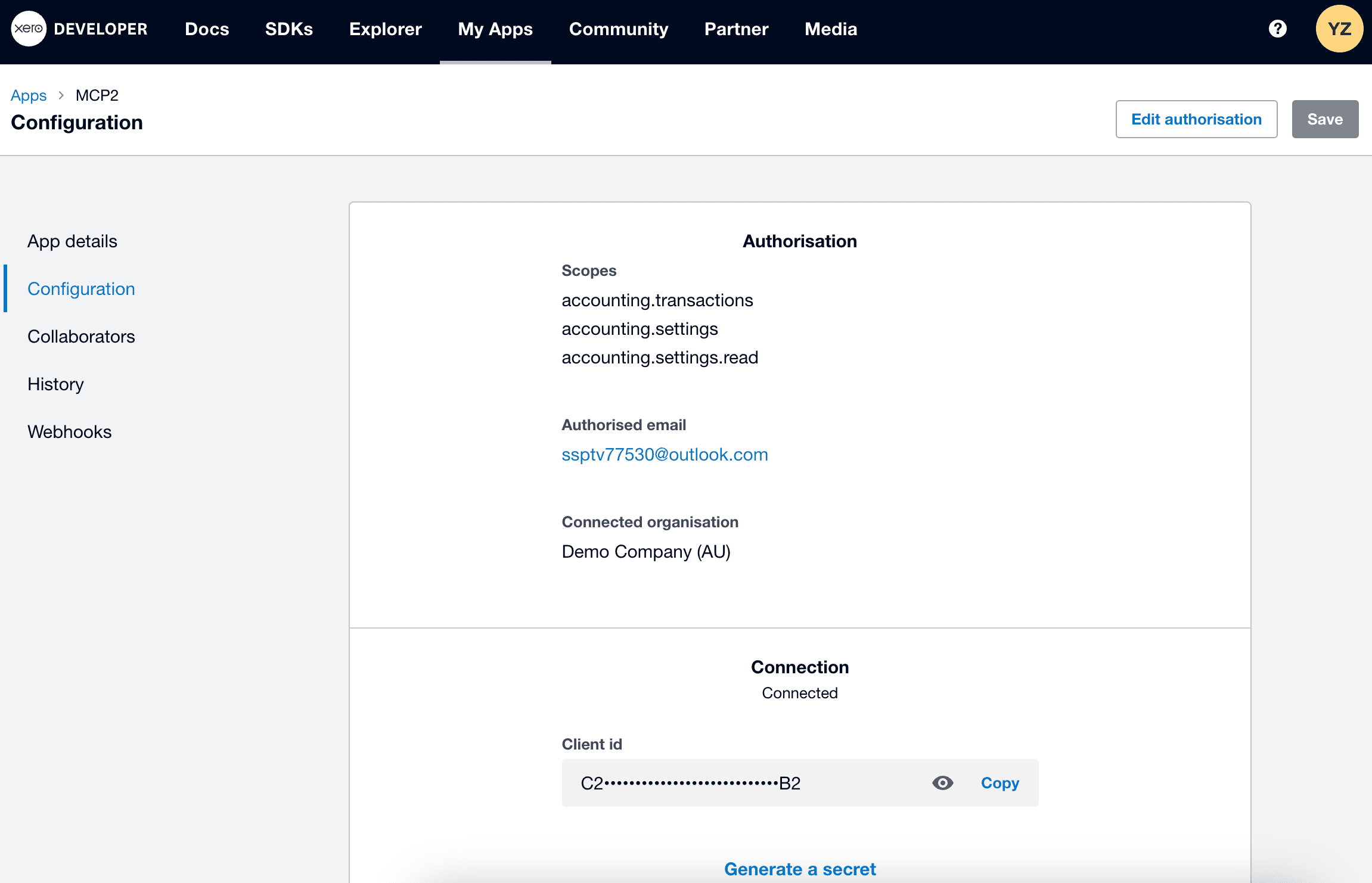
Step 5. Prepare to copy Client ID and client secret
The Client id and Client secret are now ready, keep this window so we can later return here to copy paste them.
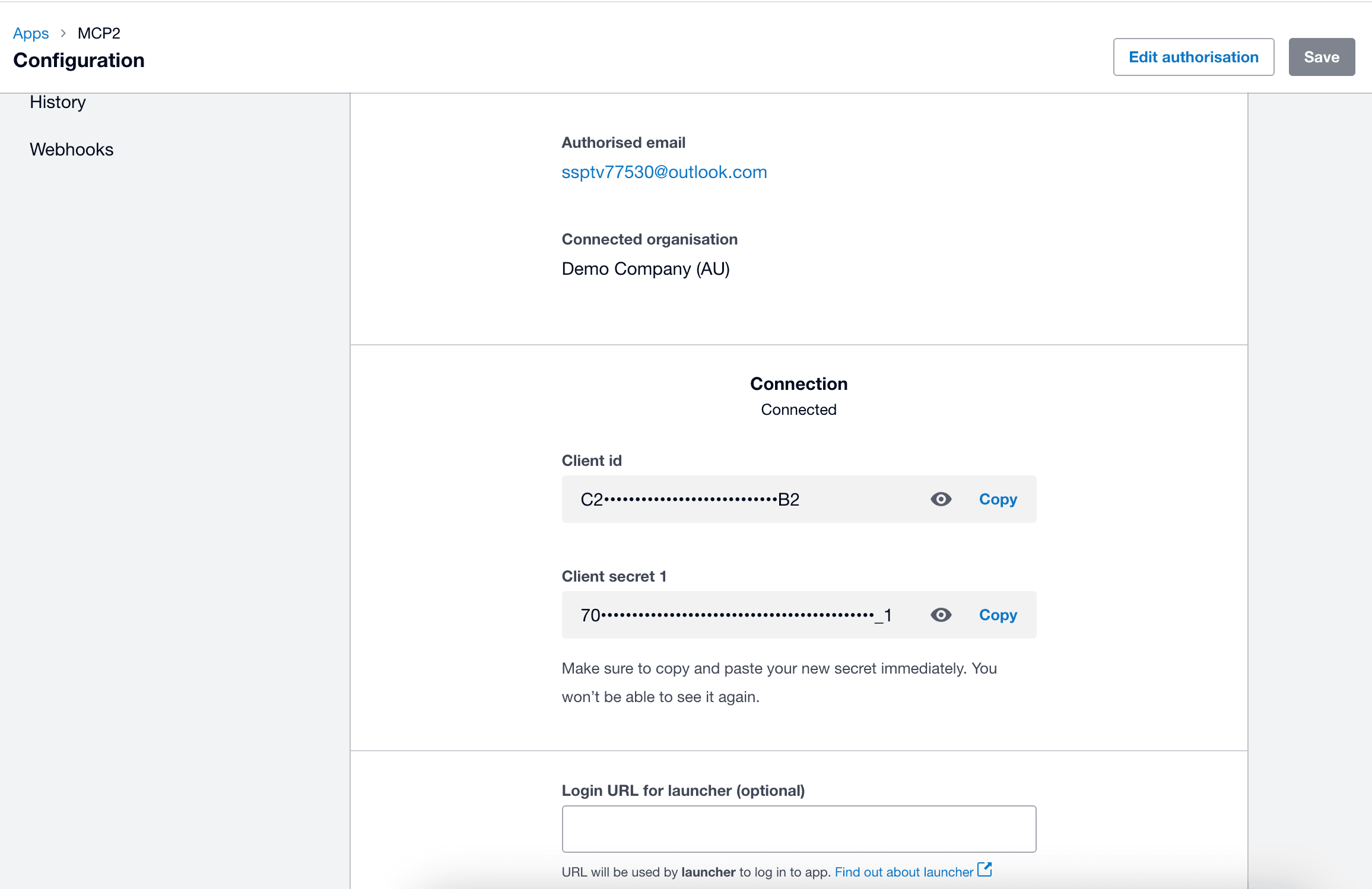
Step 6. Put the command into the Text Editor
Copy the following command
1{2 "mcpServers": {3 "xero": {4 "command": "npx",5 "args": ["-y", "@xeroapi/xero-mcp-server@latest"],6 "env": {7 "XERO_CLIENT_ID": "your_client_id_here",8 "XERO_CLIENT_SECRET": "your_client_secret_here"9 }10 }11 }12}Step 7. Put the command in VS Code (or any text editor)
Next, replace the client ID and client secret from the Developer.Xero, eg
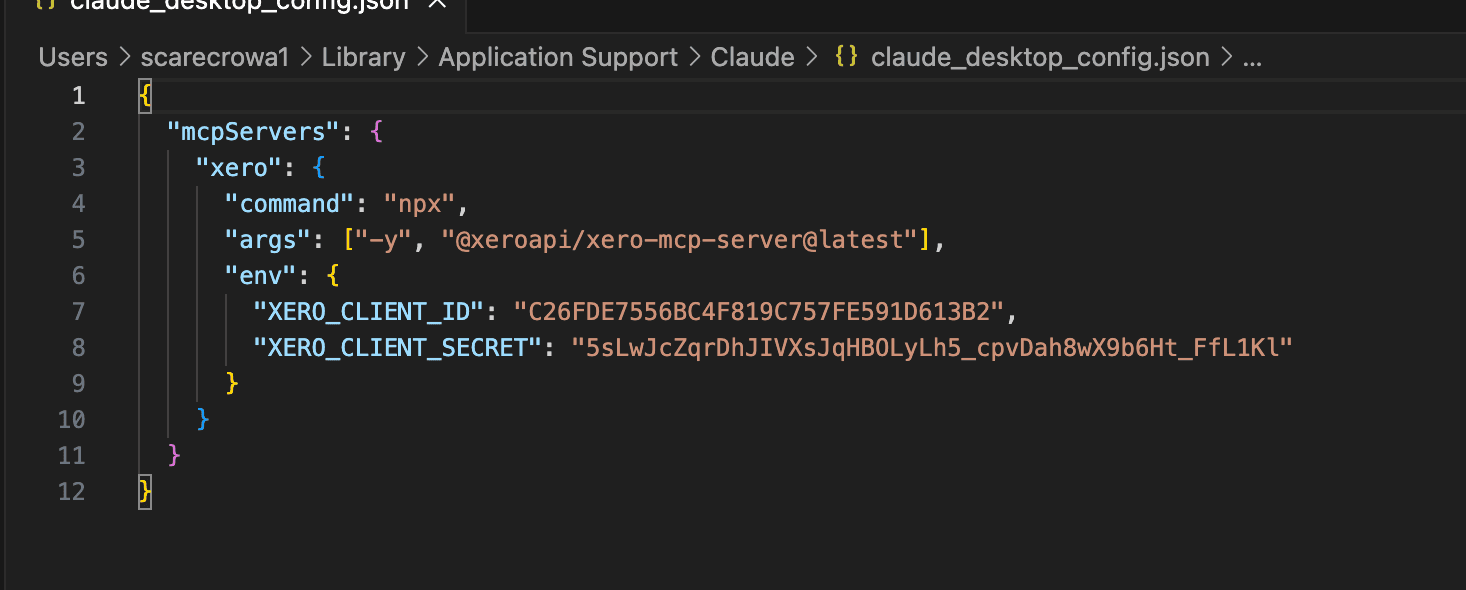
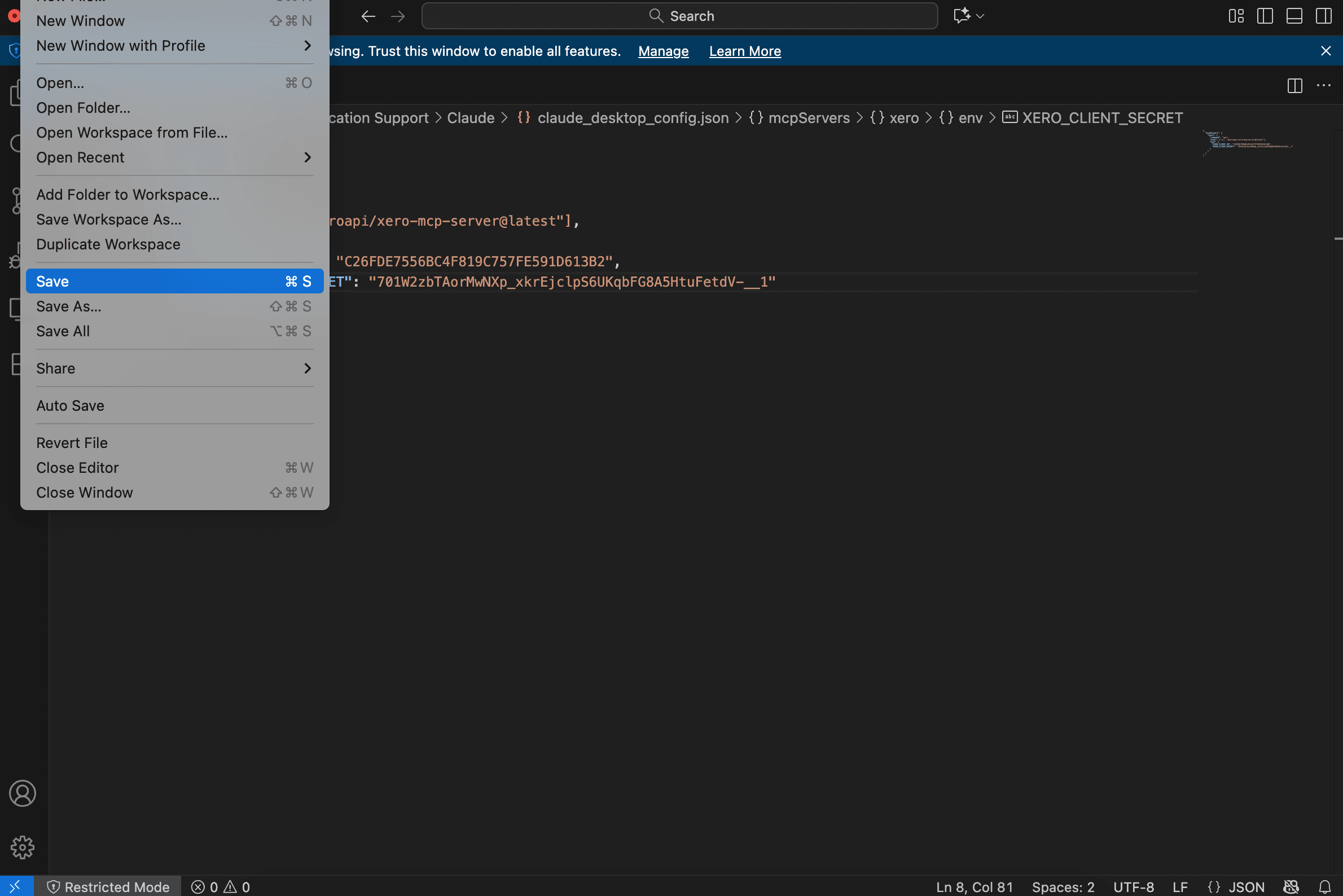
Save the file once you are done.
Step 8. Restart Claude Desktop
Clicking on File > Quit (or Exit)
Launch Claude Desktop again
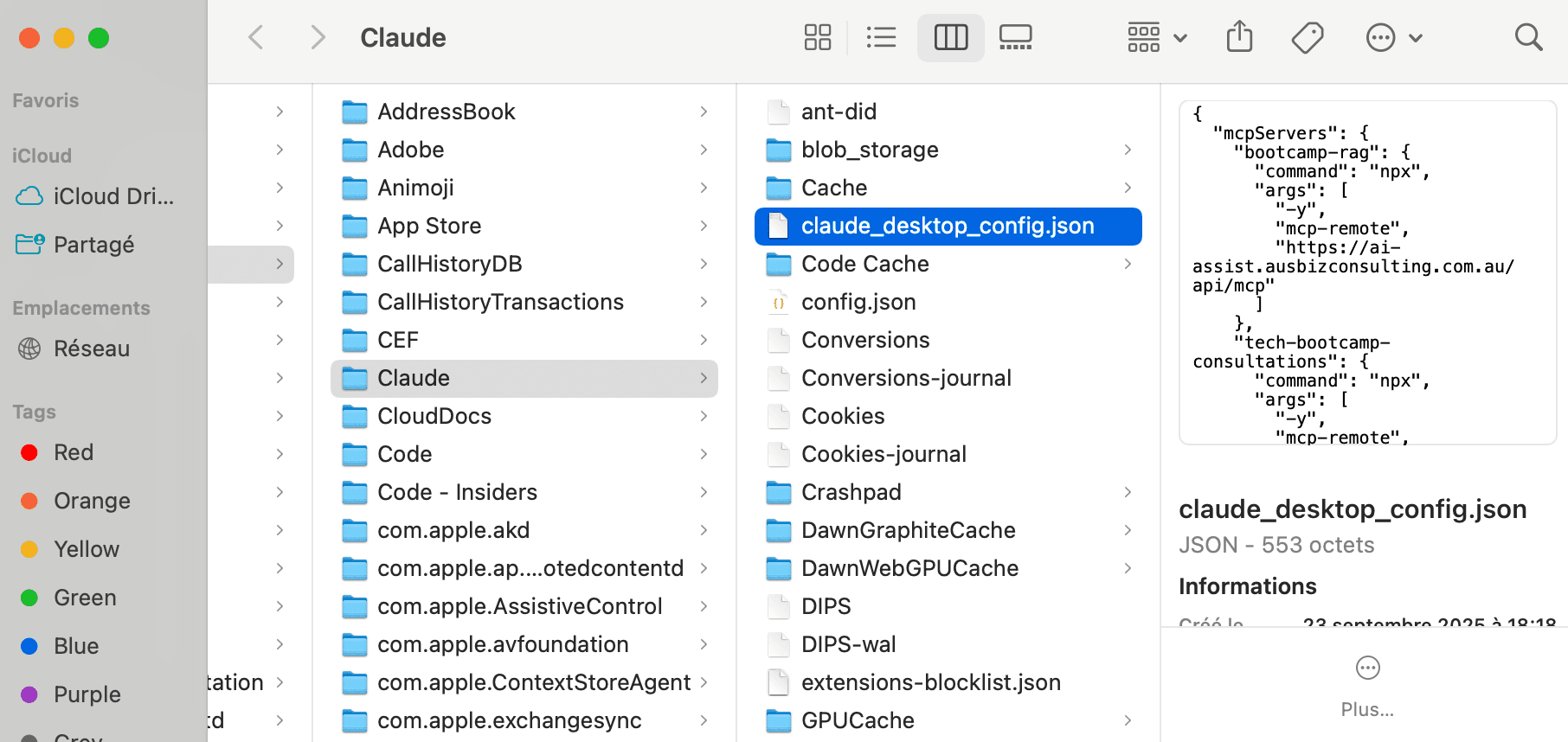
Step 9. Test the prompt
Once the file is saved, restart Claude and test the prompt.
"List my Xero contacts, please".
If Claude lists the contacts, then the setup is finished.