In this hands-on tutorial, you will learn to
Access Xero, one of Australia's most popular accounting software solutions
Set up a Demo company with a pre-built chart of accounts and sample financial transactions
Connect Xero with Claude Desktop
To get started, visit the following link:
https://www.xero.com/au/try-now/accounting/xero-accounting-software/
You can sign up with your email address for a free 30-day trial without a credit card.
You will be asked to provide information such as your company name and other details.
For the purposes of this tutorial, choose any values to proceed. The name of the company does not matter.
At the end of this exercise, you will be ready to start the hands-on exercises on using Claude to perform agentic actions in your accounting system.
Once you have signed up for your 30-day free trial,
Step 1. Log in to Xero
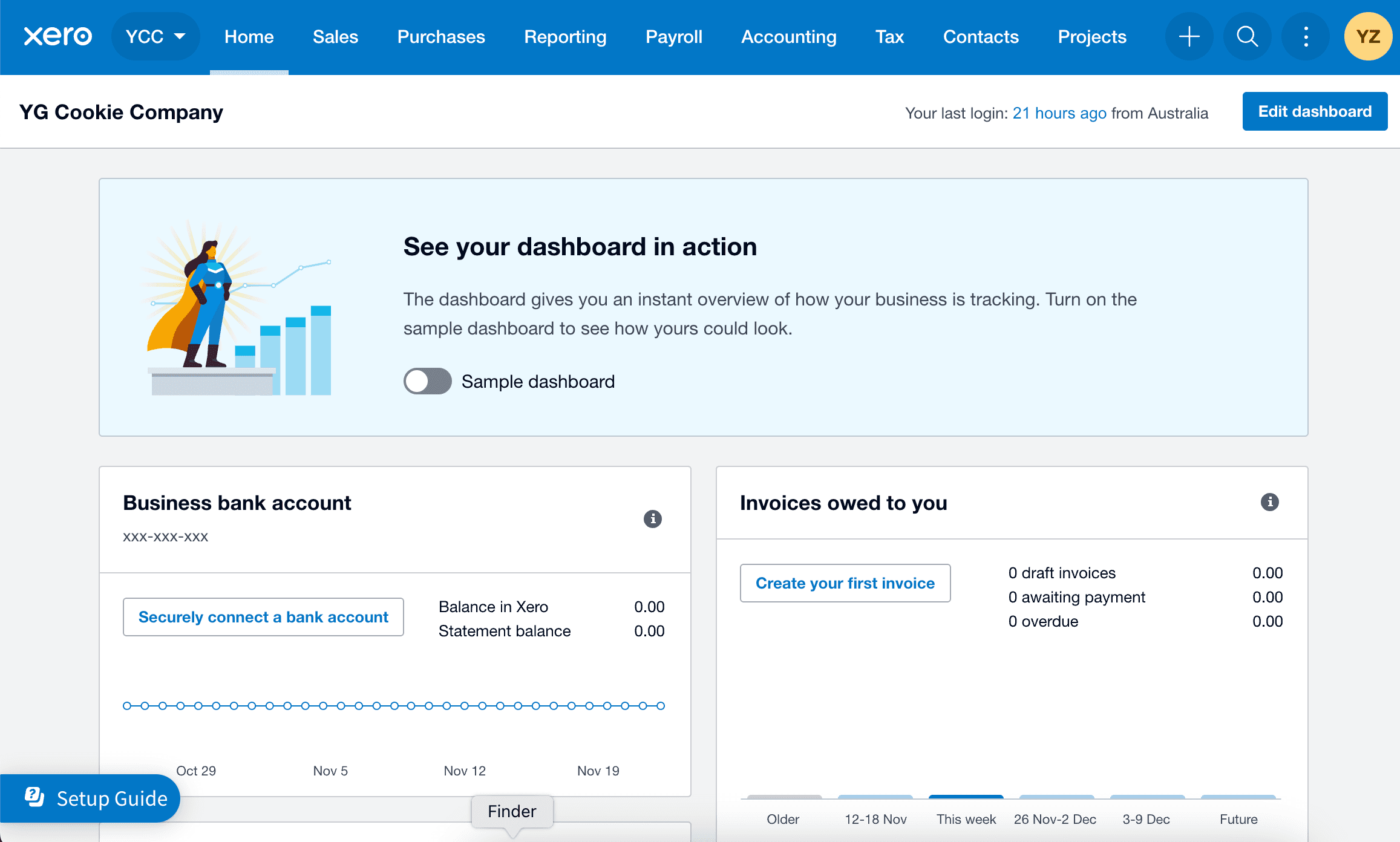
Upon logging in, you should be seeing the following:
Step 2. Switch to Demo Company
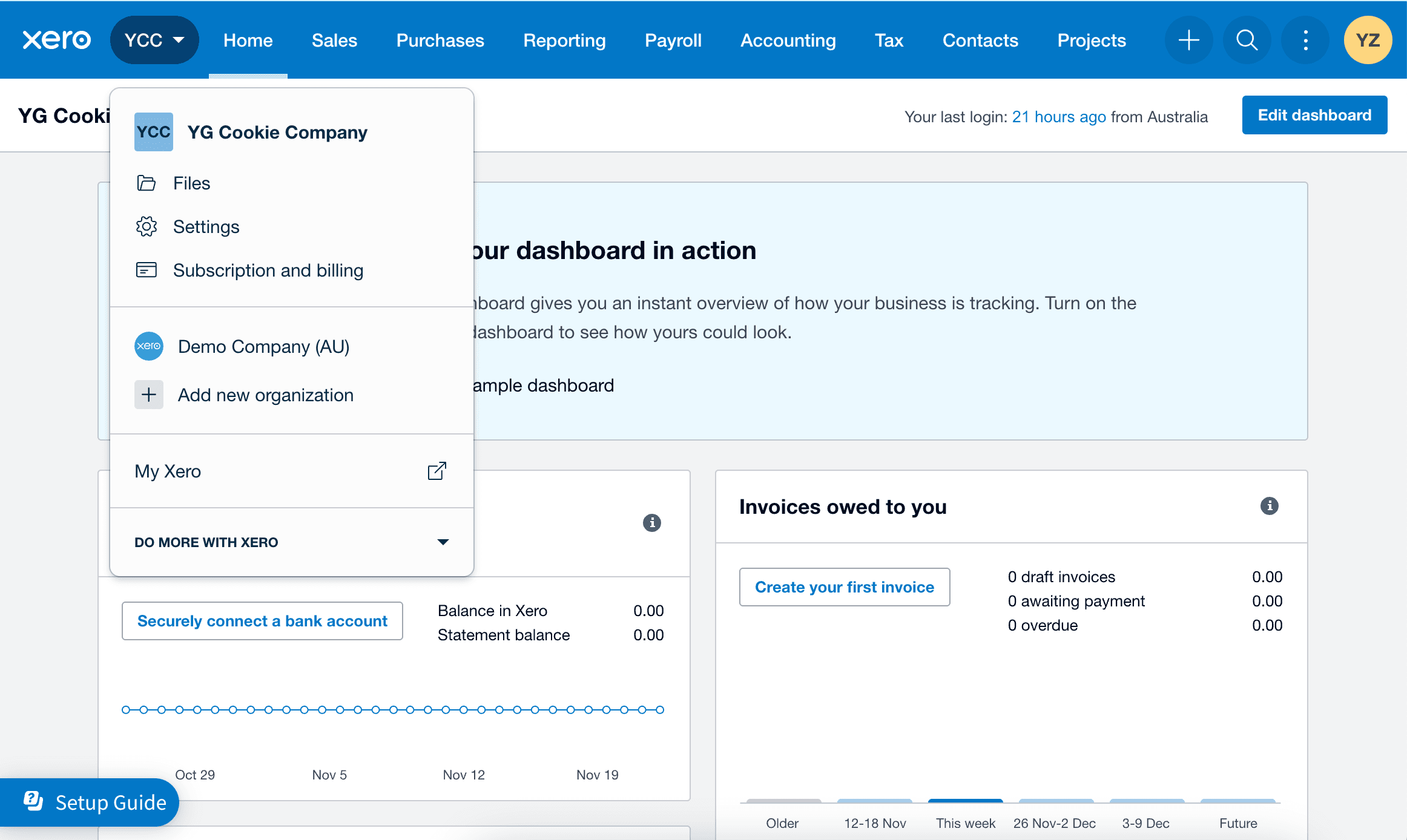
Click the dropdown menu next to the Xero logo on the top left, and you will see Demo Company (AU). It is a pre-existing company for demo purposes only, with made-up transactions inside.
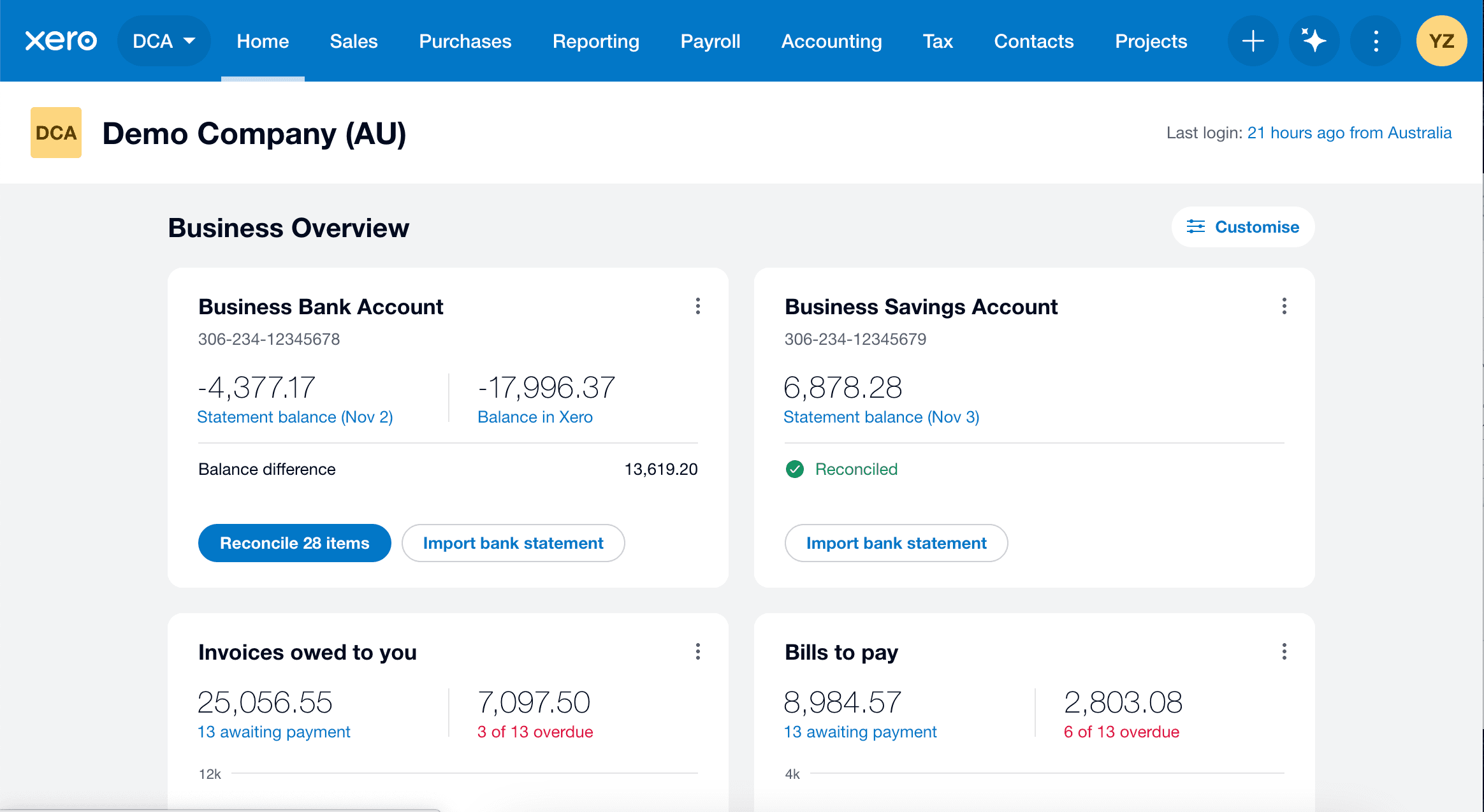
Once you have switched, you should see something like below
Step 3. Developer.Xero
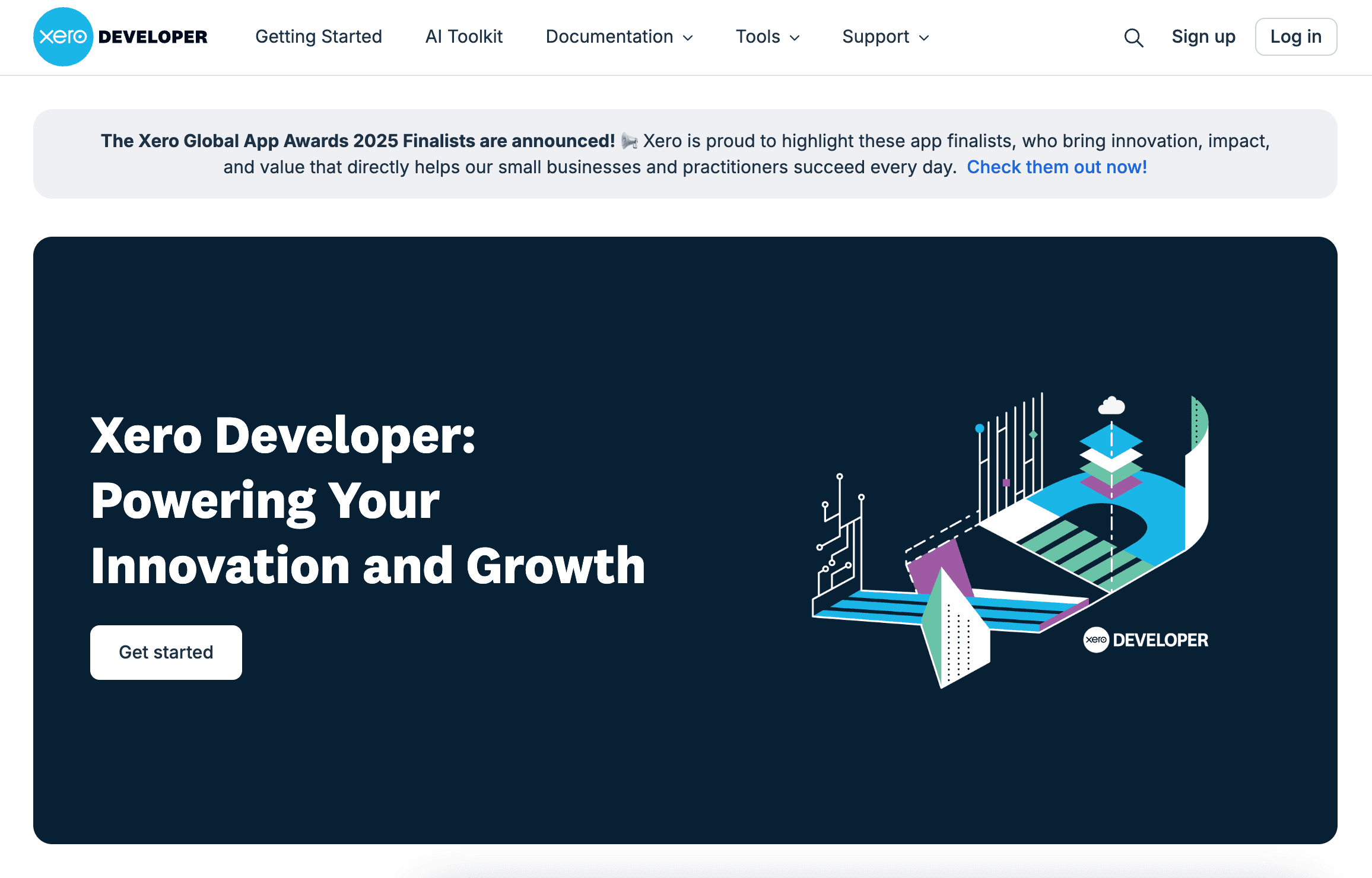
Log into Xero Developer Platform , use the same account as that you used for Xero previously.
Step 4. Developer.Xero website
This is what you should see after logging in to Developer.Xero.
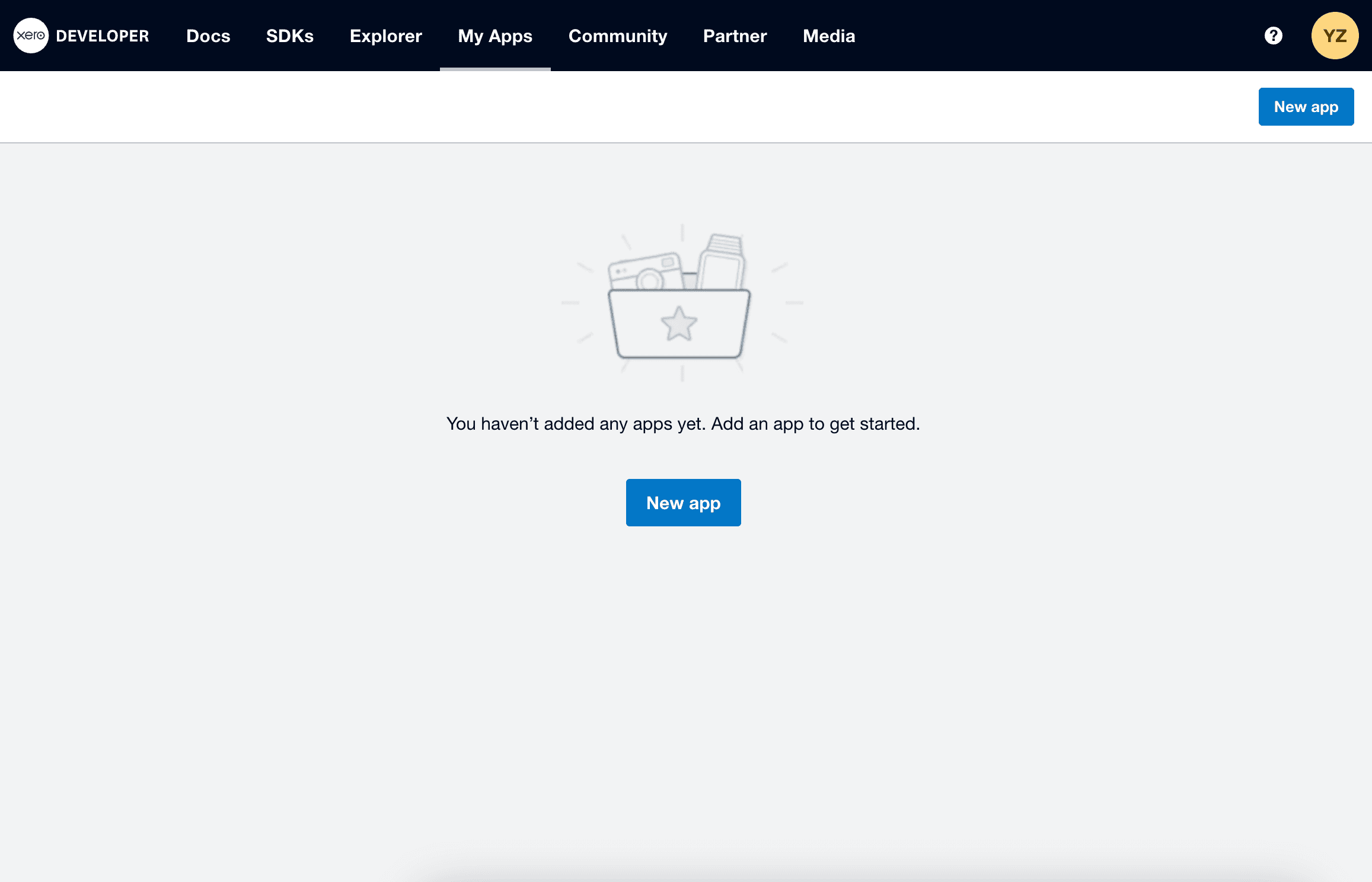
Step 5. Create New app
Click New app to create a new app
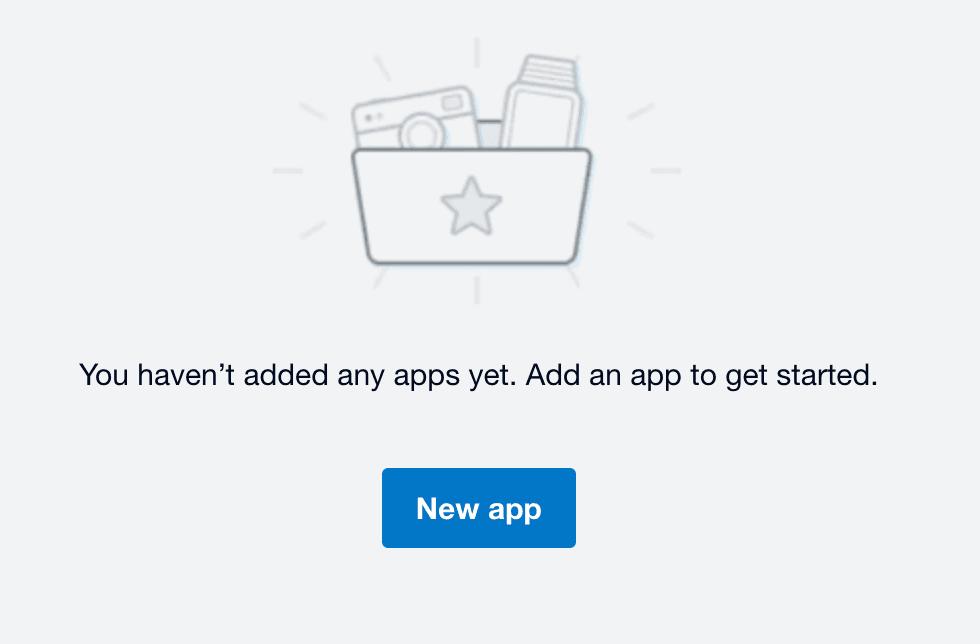
Step 6. Add a new app
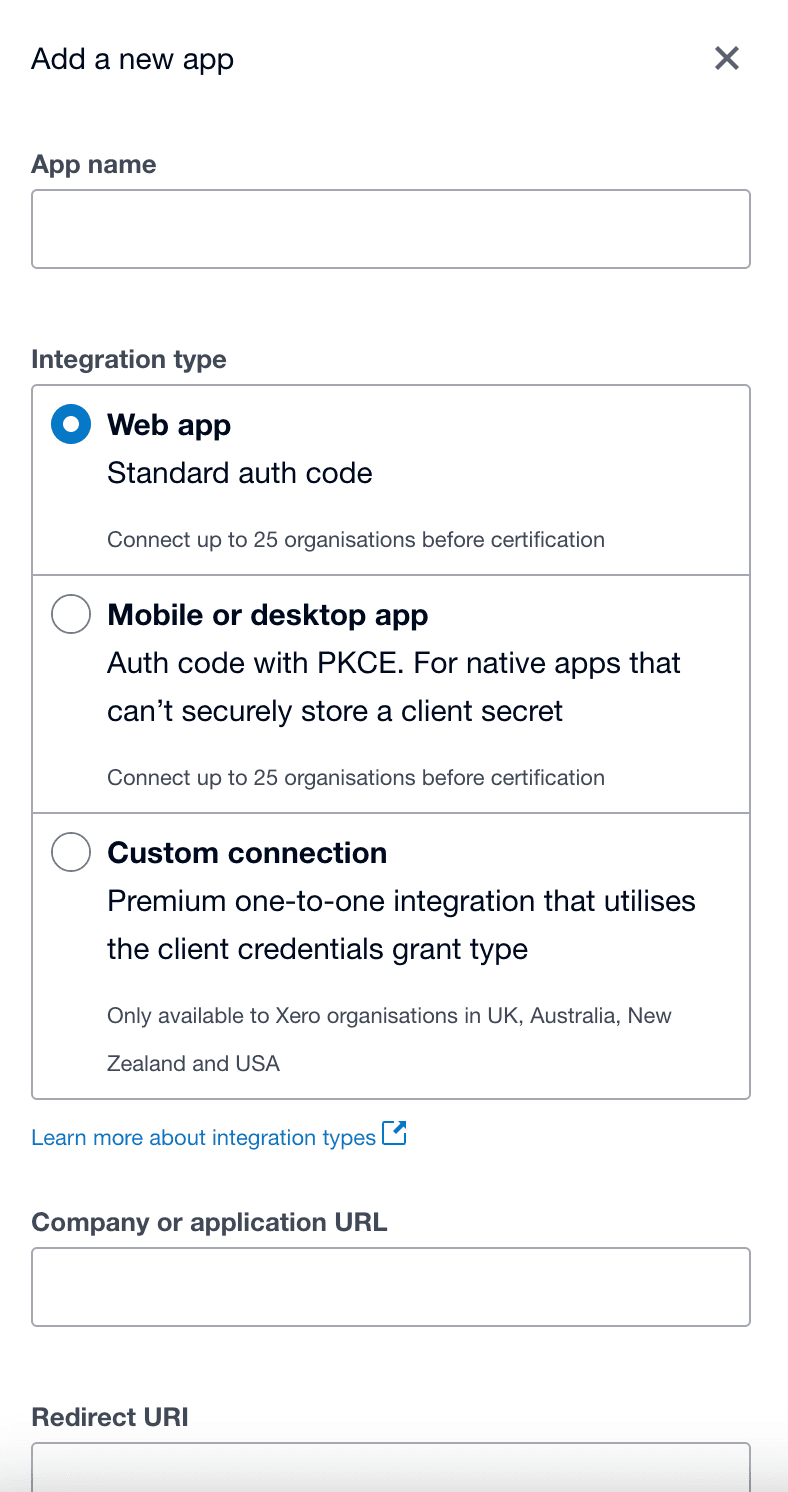
Step 7. Set up the new app
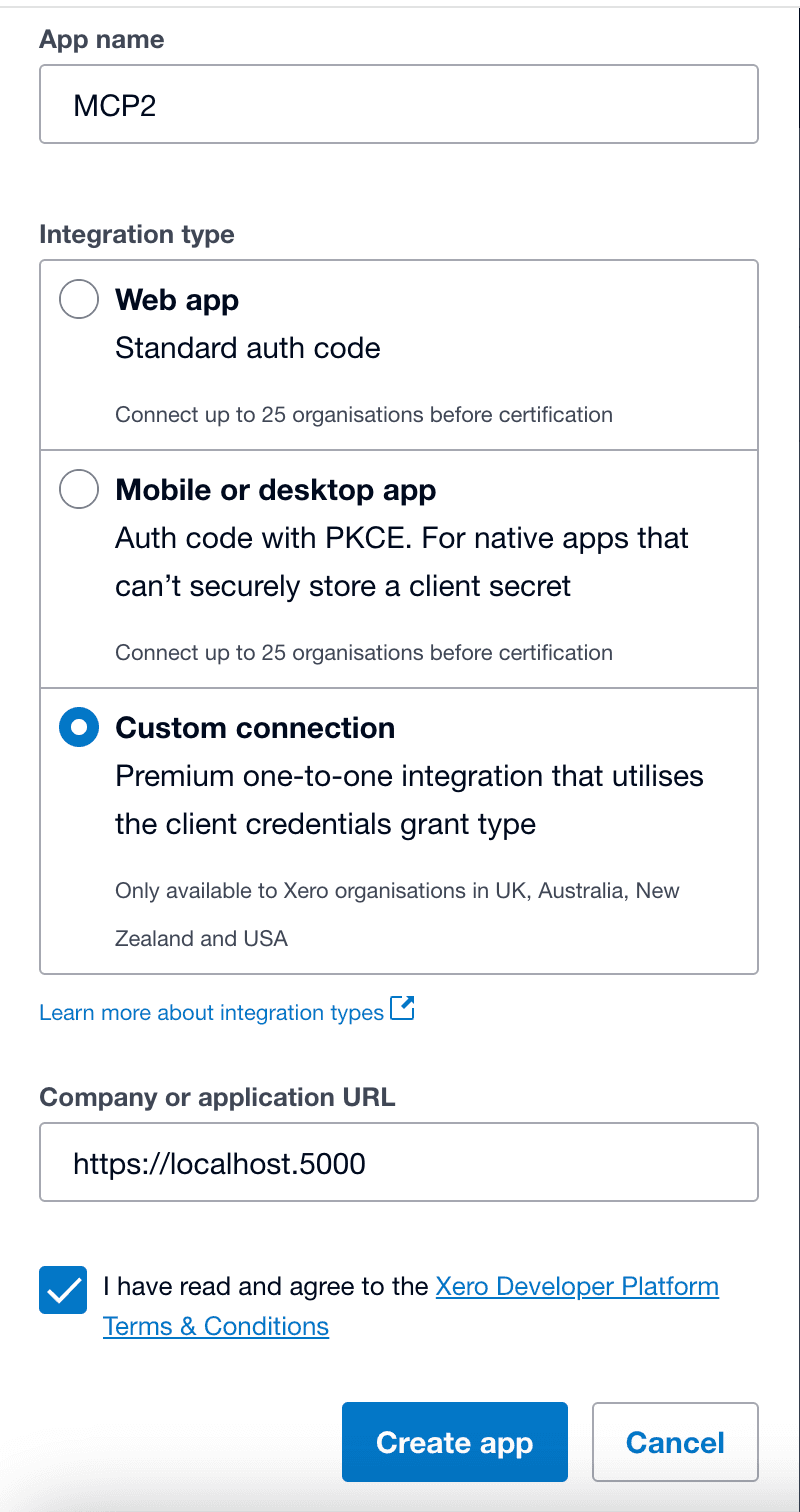
The name does not matter; you can put in whatever name you would like. In this case, I used MCP1.
Select a custom connection in the integration type
For Company or application URL, type in https://localhost.5000
Tick the box below and click Create app.
Step 8. Select scopes
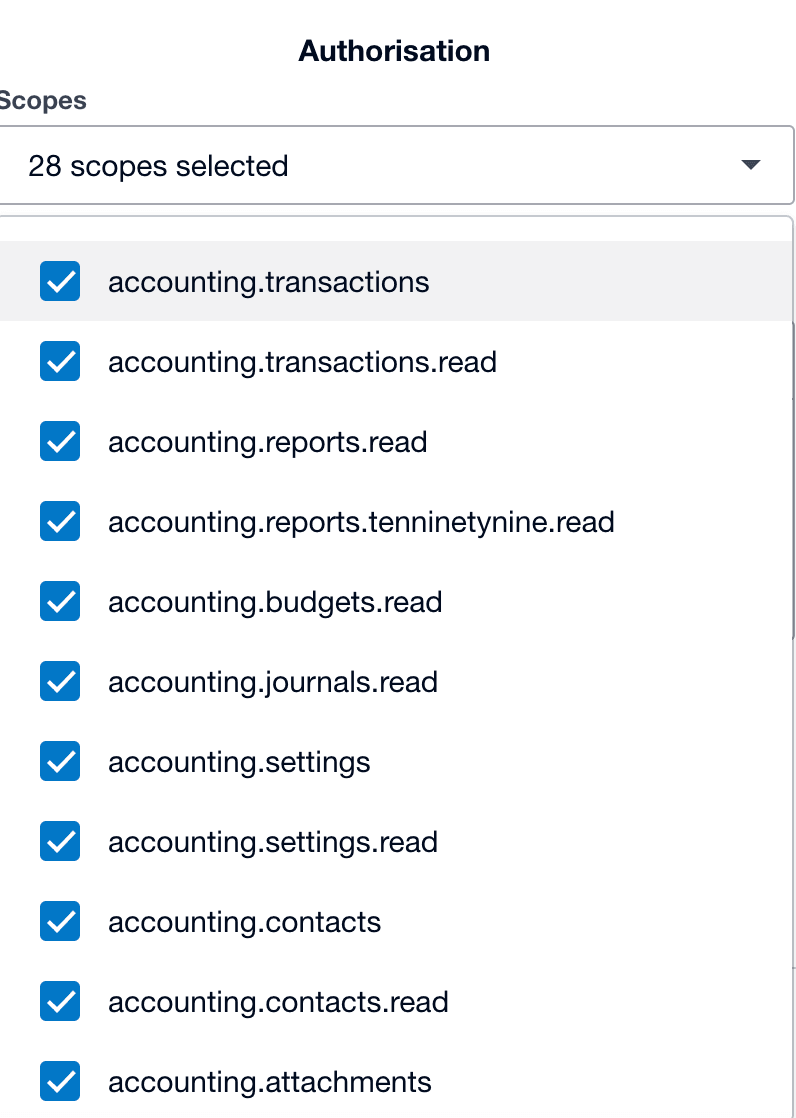
After clicking Create app, you see this authorisation page, with a dropdown menu in Scopes. Select all 28 scopes here.
Step 9. Save and connect App
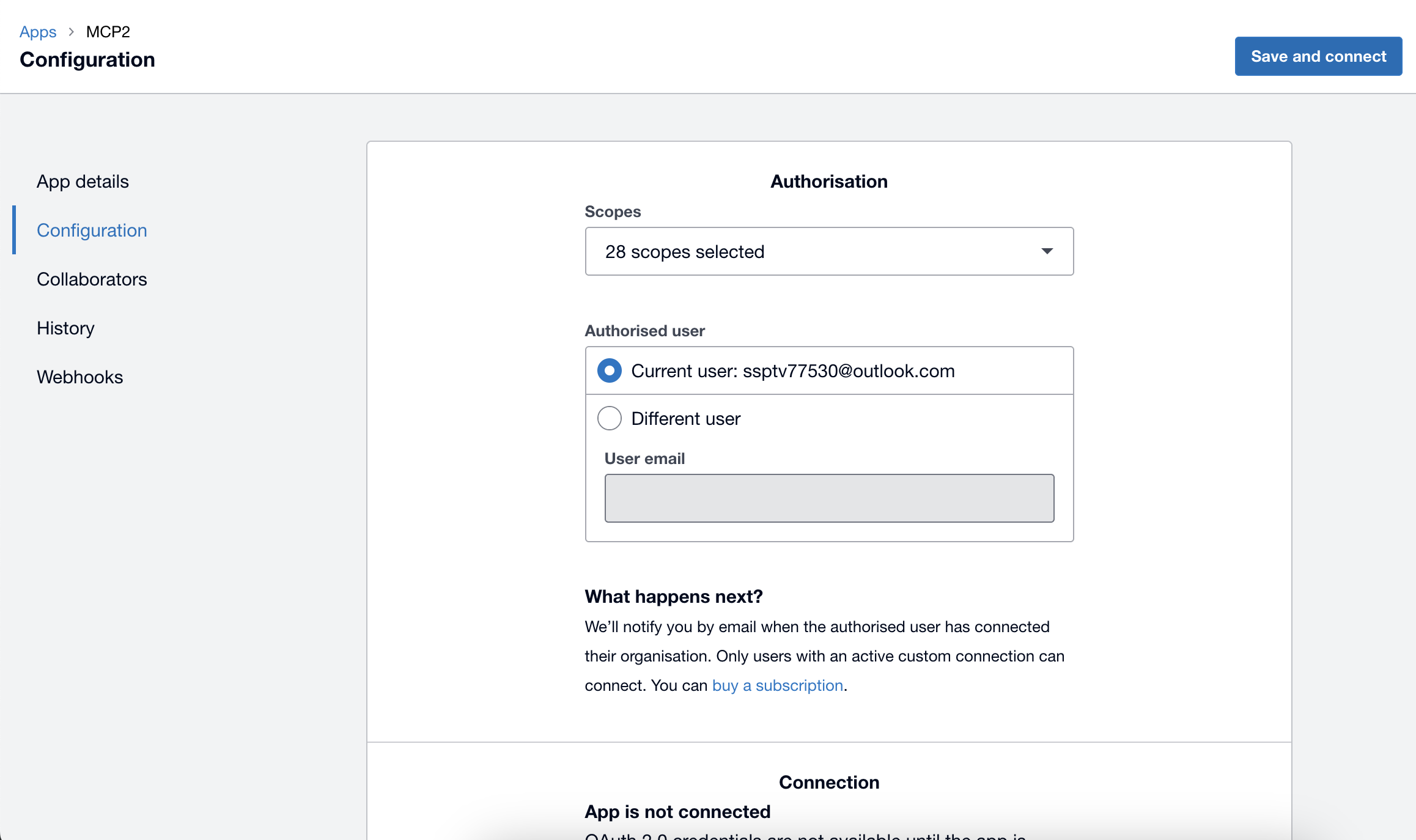
Once you confirm all scopes are selected and the current user email is correct, hit Save and Connect.
Step 10: App pending authorisation.
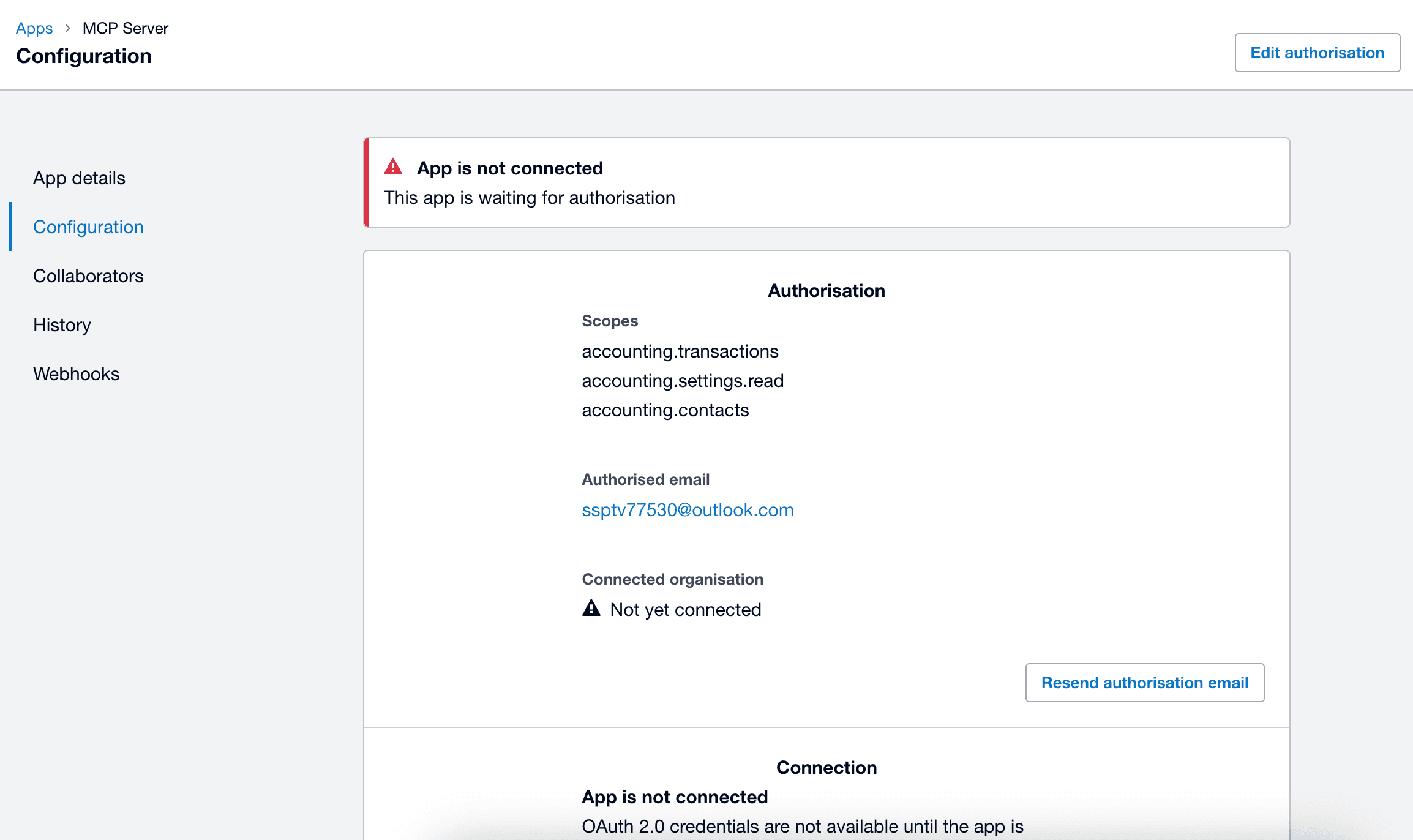
The app is now created, but it is not yet connected. This is what you should see at this stage.
An authorisation Email has been sent to the user's Email you have previously used. Check your Email inbox for an authorisation Email from Xero.
Step 11: Authorise the app
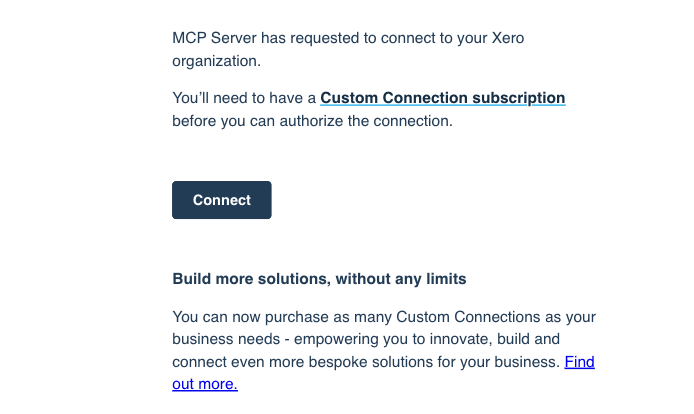
The authorisation Email can be found in your inbox. Click Connect. This will finish the authorisation.
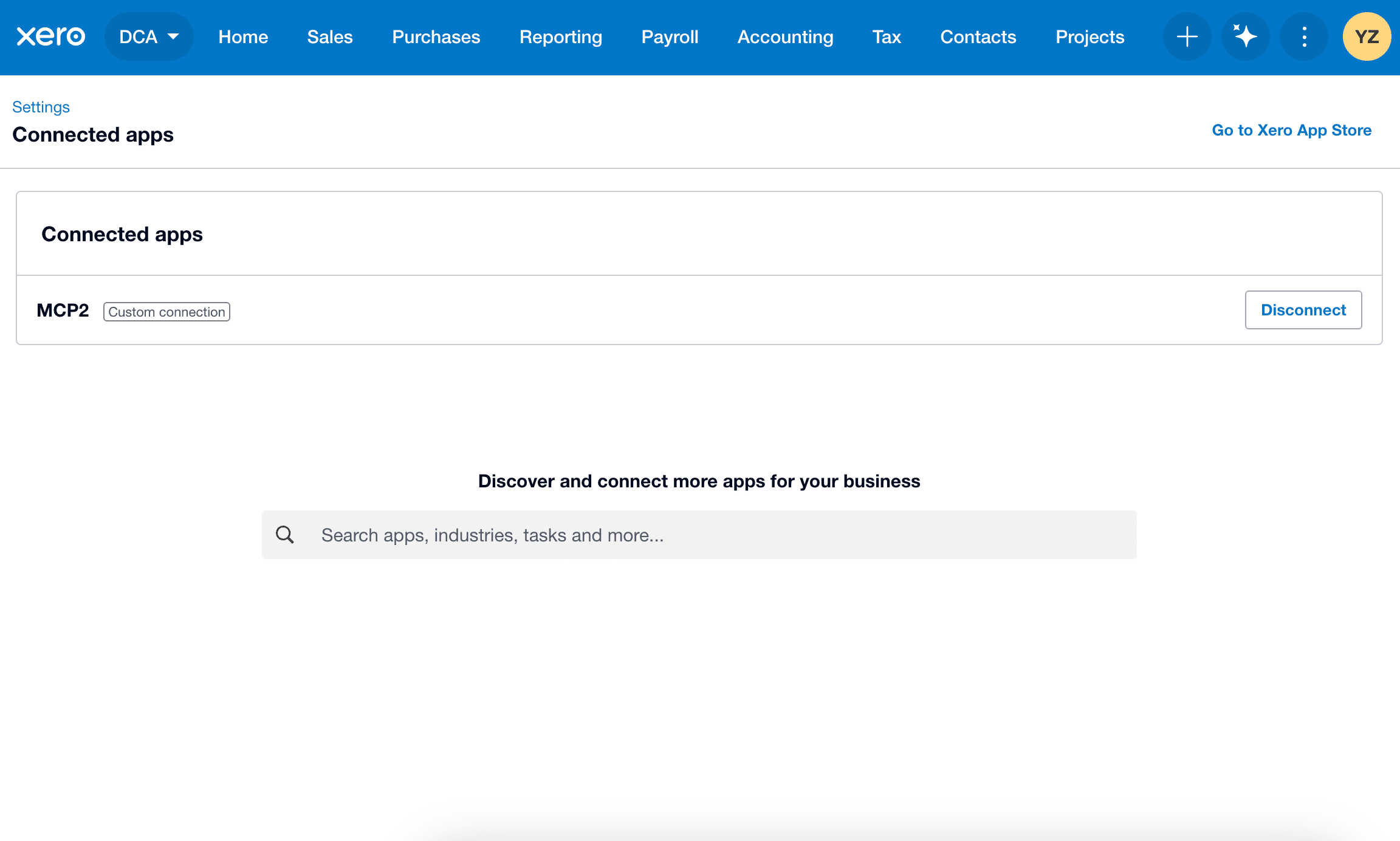
Step 12. App connected
Now the App is authorised and connected, this is what you should be seeing.
Step 13: Return to Developer.Xero
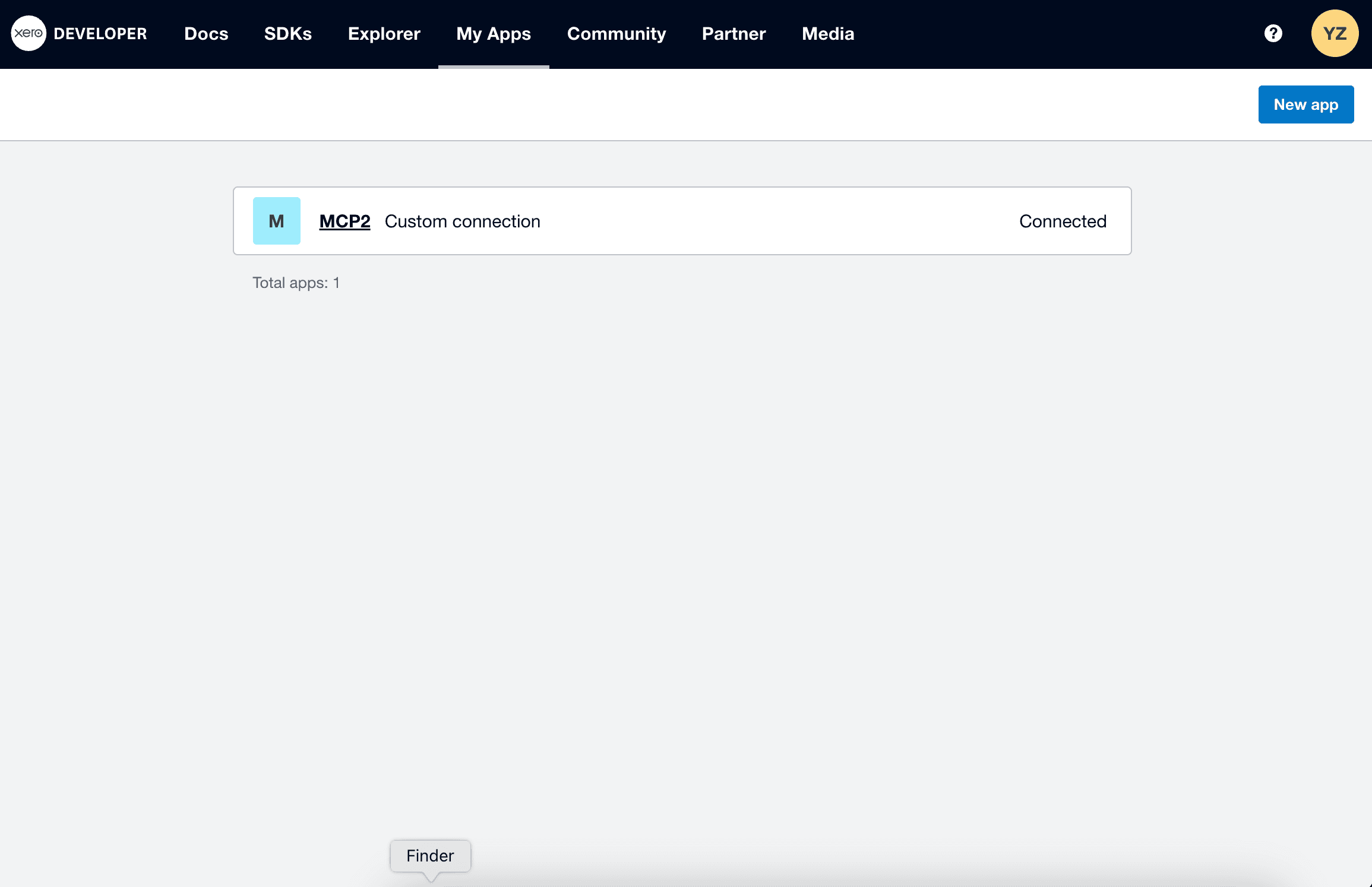
Return to the Developer.Xero website.
In the My Apps tab, click on the app you have created.
Suppose you are having trouble opening Developer.Xero, try using Incognito mode in your browser.
Step 14. Change URL
In App details, you will see the Company or application URL, currently it should be https://localhost.5000
Change it to
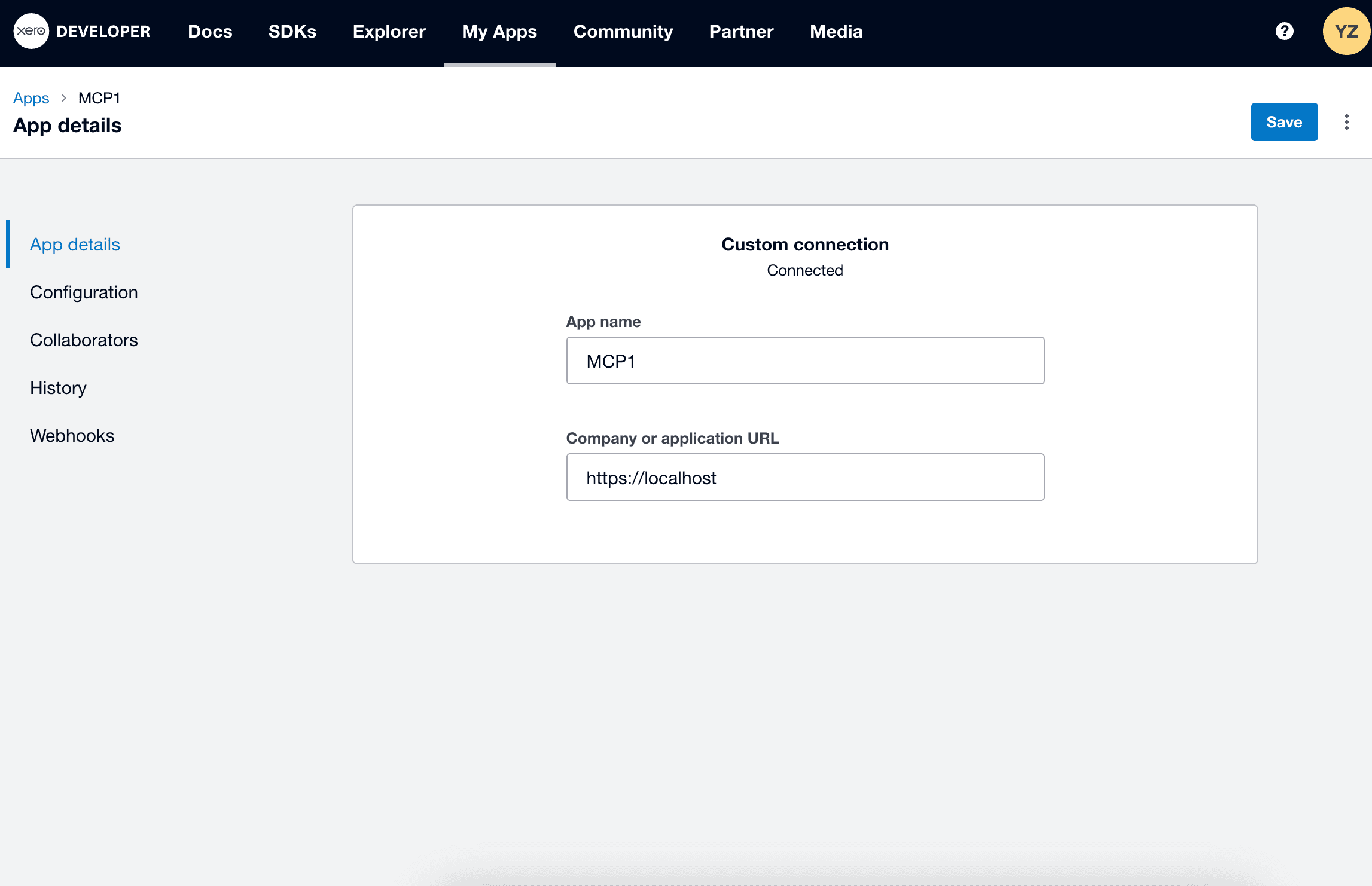
Click Save once you have made the changes.