Make sure you have Python installed.
Step 1 - Install uvx
- Open your Terminal on Windows or MacOS
- Type
1pip install uvOn MacOS
- Type
1pip3 install uvStep 2 - Verify Installation
To verify installation. Please type the following commands in Terminal
1uv --version1uvx --versionYou should see a response like below.

Note:
The version number will be different and your terminal may look different based on if you're on Windows or MacOS
If version number does not show up after entering the command, please follow the guide below.
Type the following on your terminal.
Windows
1pip show uv
MacOS
1pip3 show uvYou should see response like below
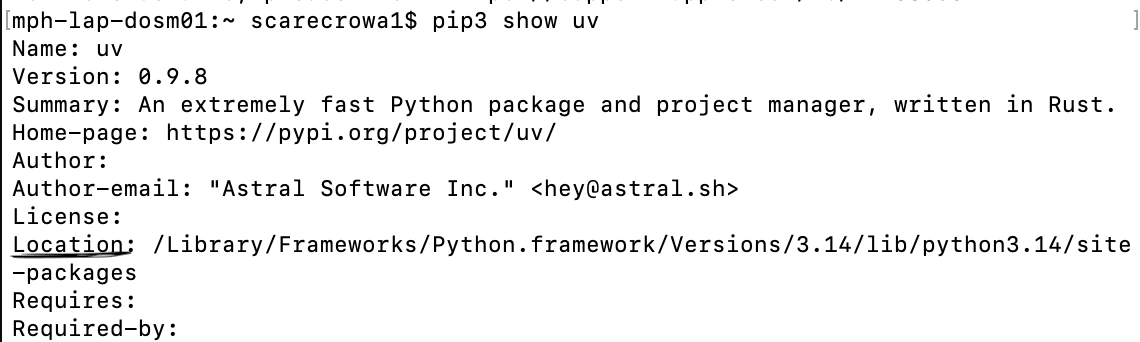
This means that uv is installed correctly. But, your computer can't find the location of the installed files.
There are several options based on if you are in Windows or Mac.
In Windows, you need to go to Control Panel > System > Environment Variables
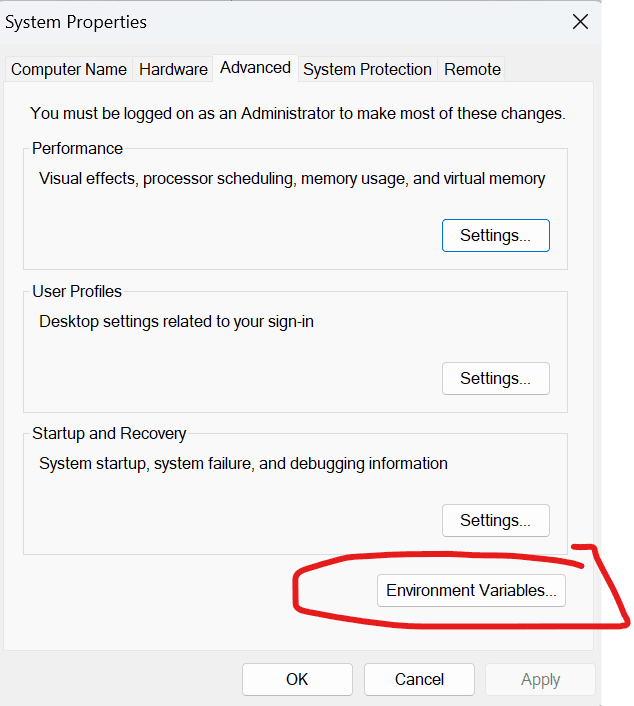
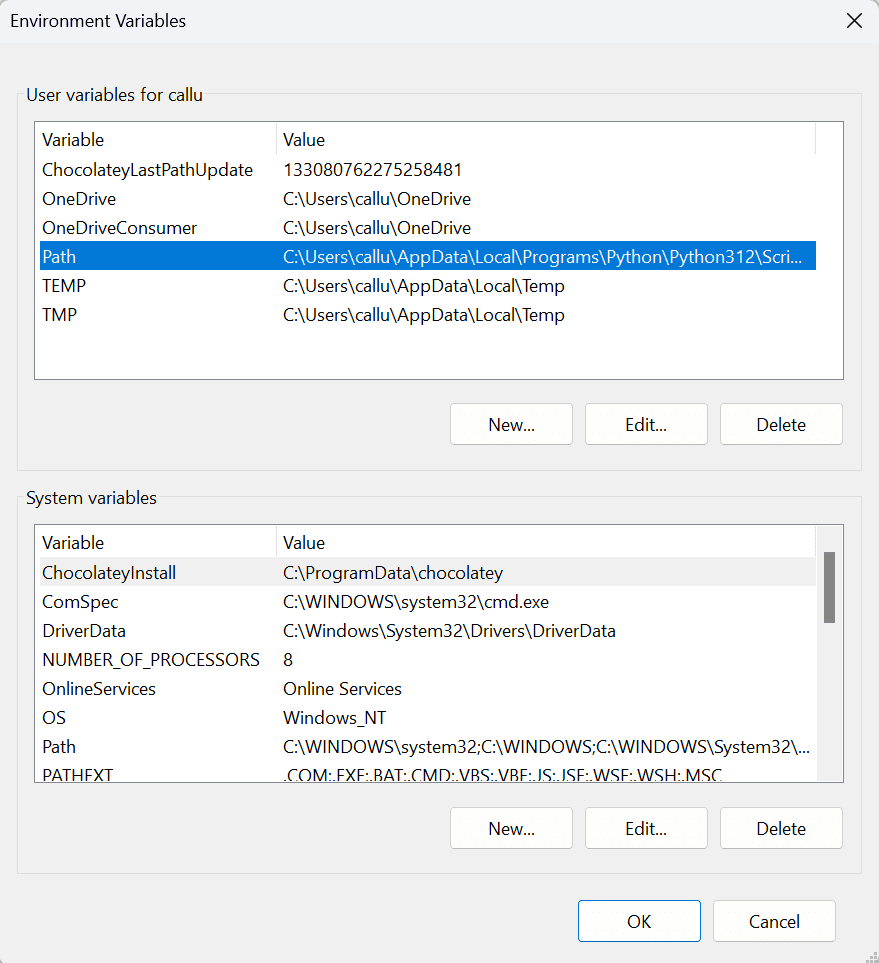
Add the location (directory name) into the Path environment variable.
MacOS
It is easier to add a link to existing path, by typing in. Replace the [Location] with the location you see based on the previous pip3 show uv command. For example, see below
1sudo ln -s /[Location]/bin/uvx /usr/local/bin/uvx2sudo ln -s /[Location]/bin/uv /usr/local/bin/uvNow, you can verify above worked. Open a new terminal and type in
1uv --version2uvx --versionStep 3 - Configure Claude Desktop
- Download and install Claude Desktop App if you haven’t done so.
- Once logged in, go to Settings
- Go to “Developer”, then click on “Edit Config”
- The File explorer or finder will pop up with a file selected, open that file (claude_desktop_config.json)
- Copy the following and replace everything inside
1{2 "mcpServers": {3 "sec-edgar-mcp": {4 "command": "uvx",5 "args": [6 "--from",7 "git+https://github.com/stefanoamorelli/sec-edgar-mcp.git",8 "sec-edgar-mcp"9 ],10 "env": {11 "SEC_EDGAR_USER_AGENT": "Your Name (name@domain.com)"12 }13 }14 }15}- Replace "Your Name (name@domain.com)" with your own name and email address
- Save the file (Ctrl + S or Command + S)
- Quit Claude
- Start Claude again.
Step 4 - Test the Integration
You can use the following prompt to test:
What’s Apple’s latest 10-K filing